
Share your favorite miniroom and check out other Hoomanz’ minirooms, too!
1) How to Save a Miniroom as a Preset!
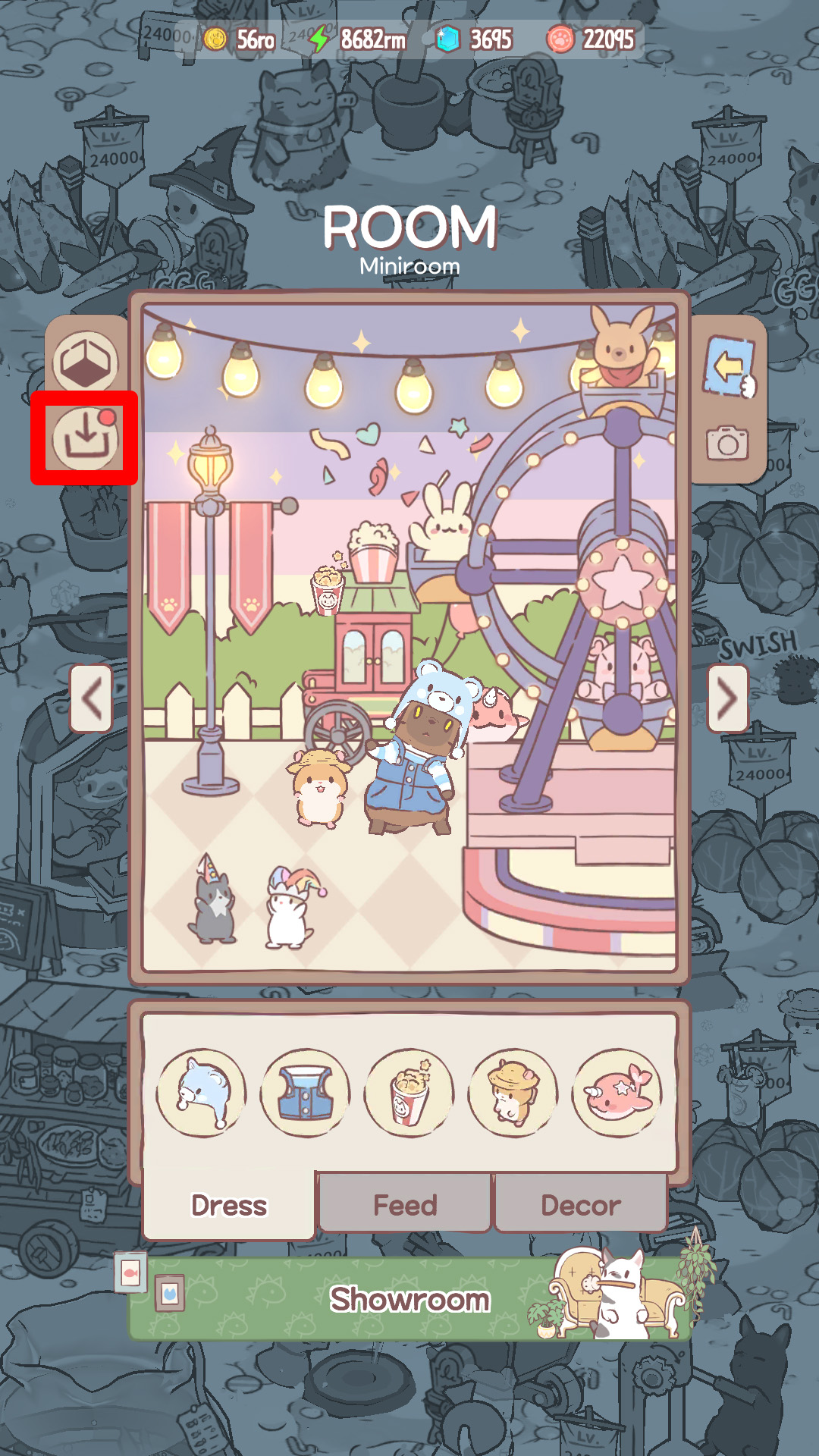
Once you have completed decorating a miniroom, hit the ‘Save’ button.
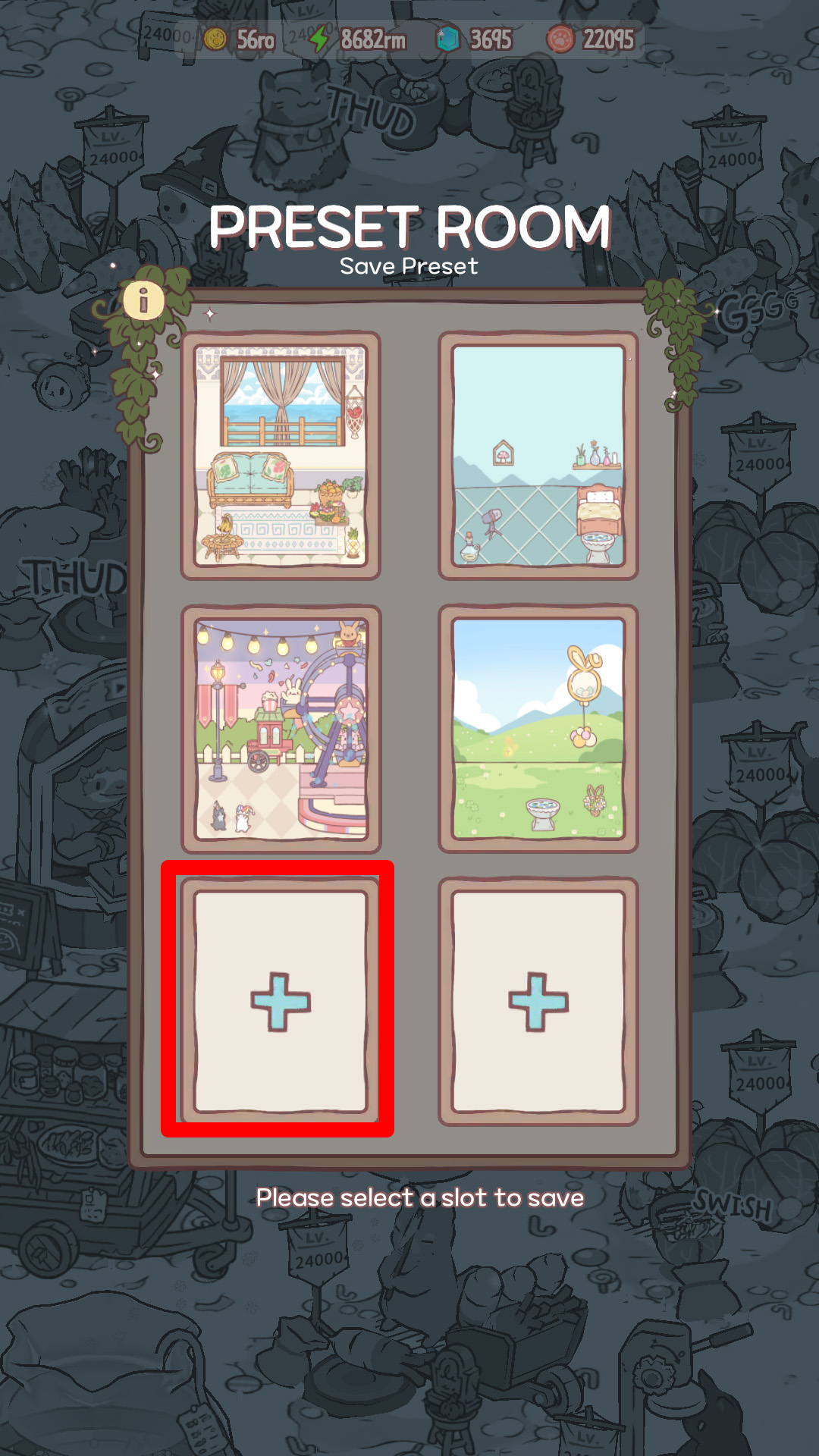
If you select an empty slot…
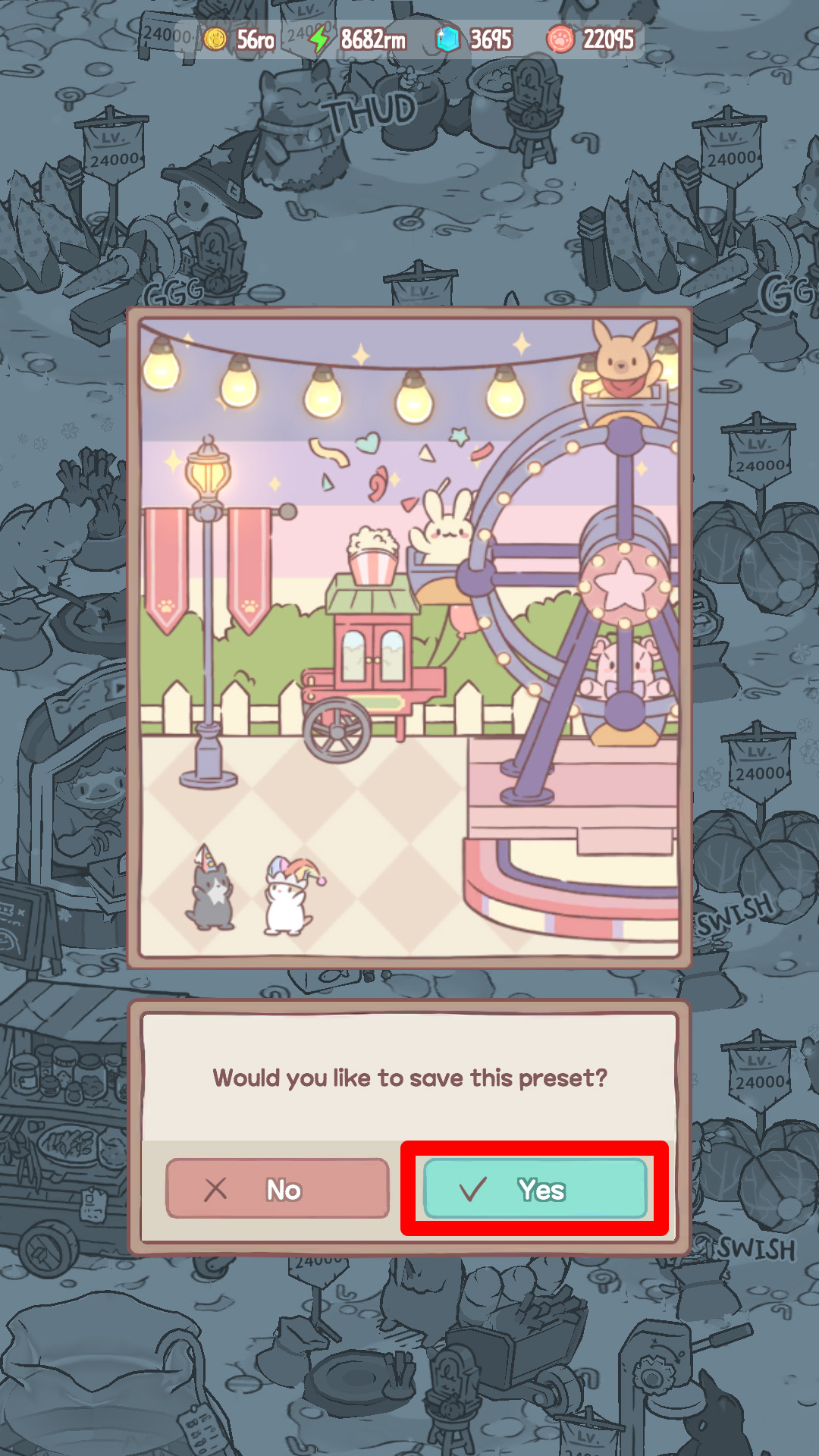
and it’s all done!
※ If you choose a slot that already has a preset saved, the old preset will disappear!
2) Import a Saved Miniroom to Showroom!
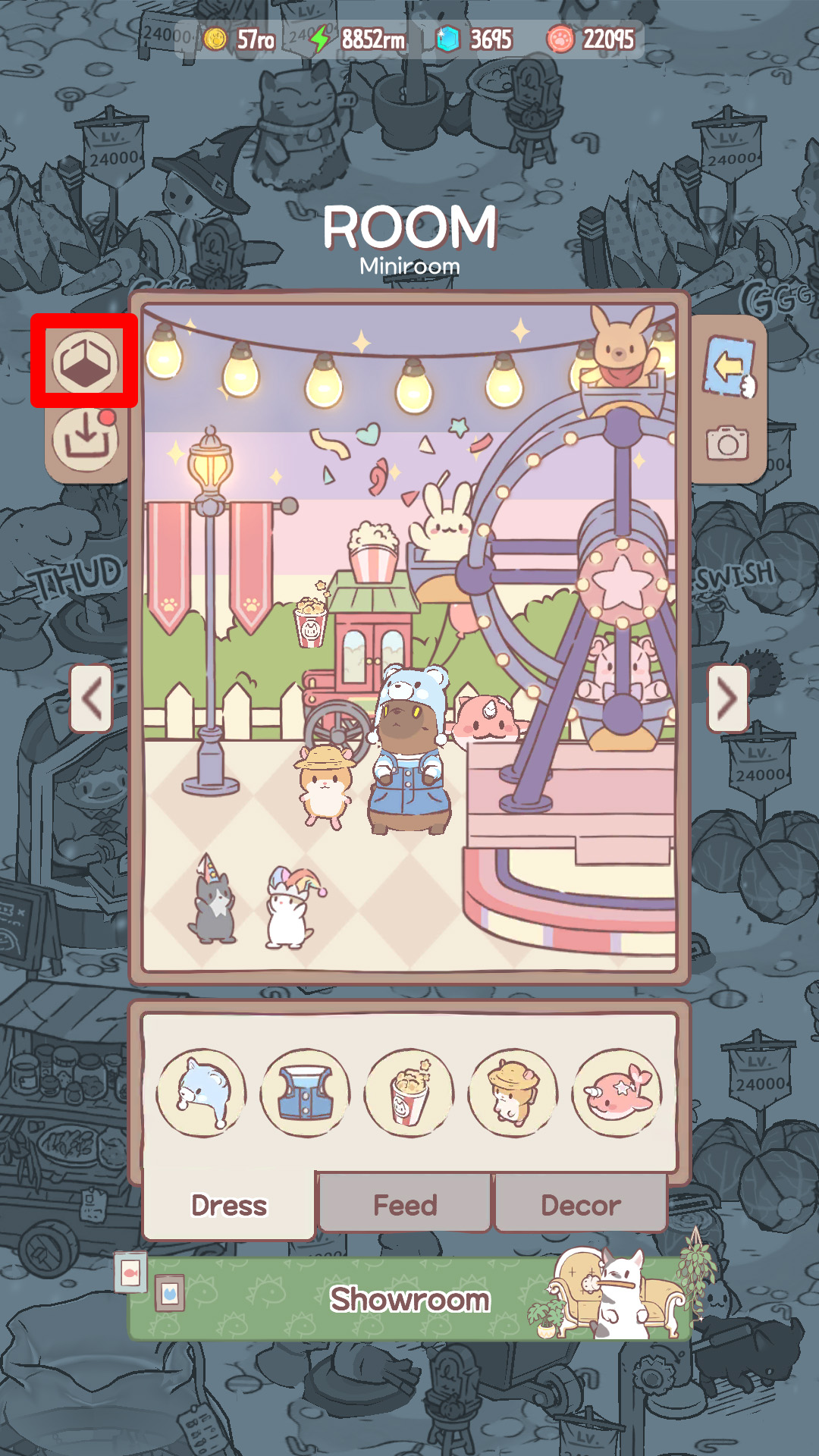
Once you’re done saving a miniroom, then it’s time to share!
First, go to ‘Miniroom Storage’,
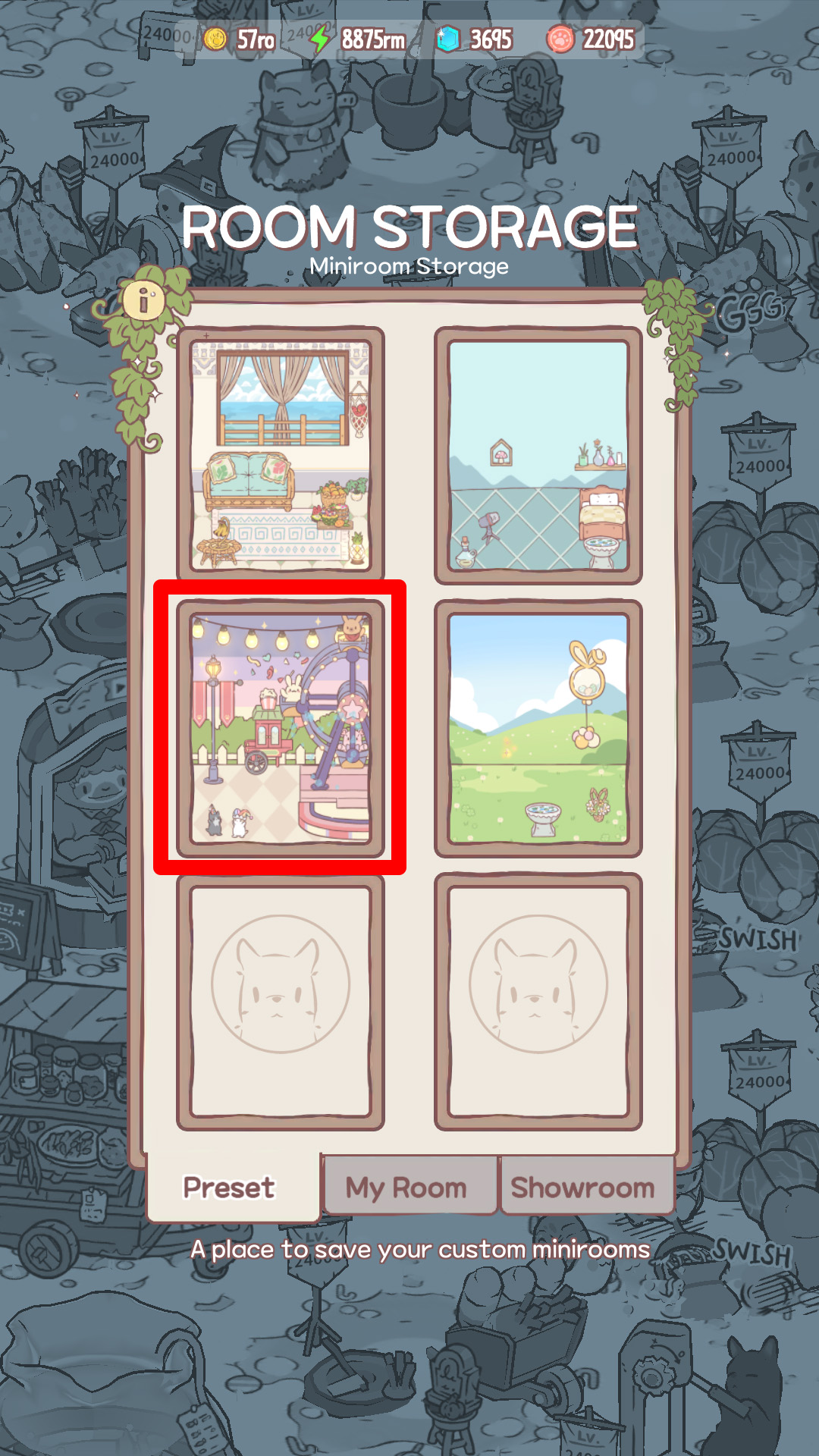
and select a miniroom preset.
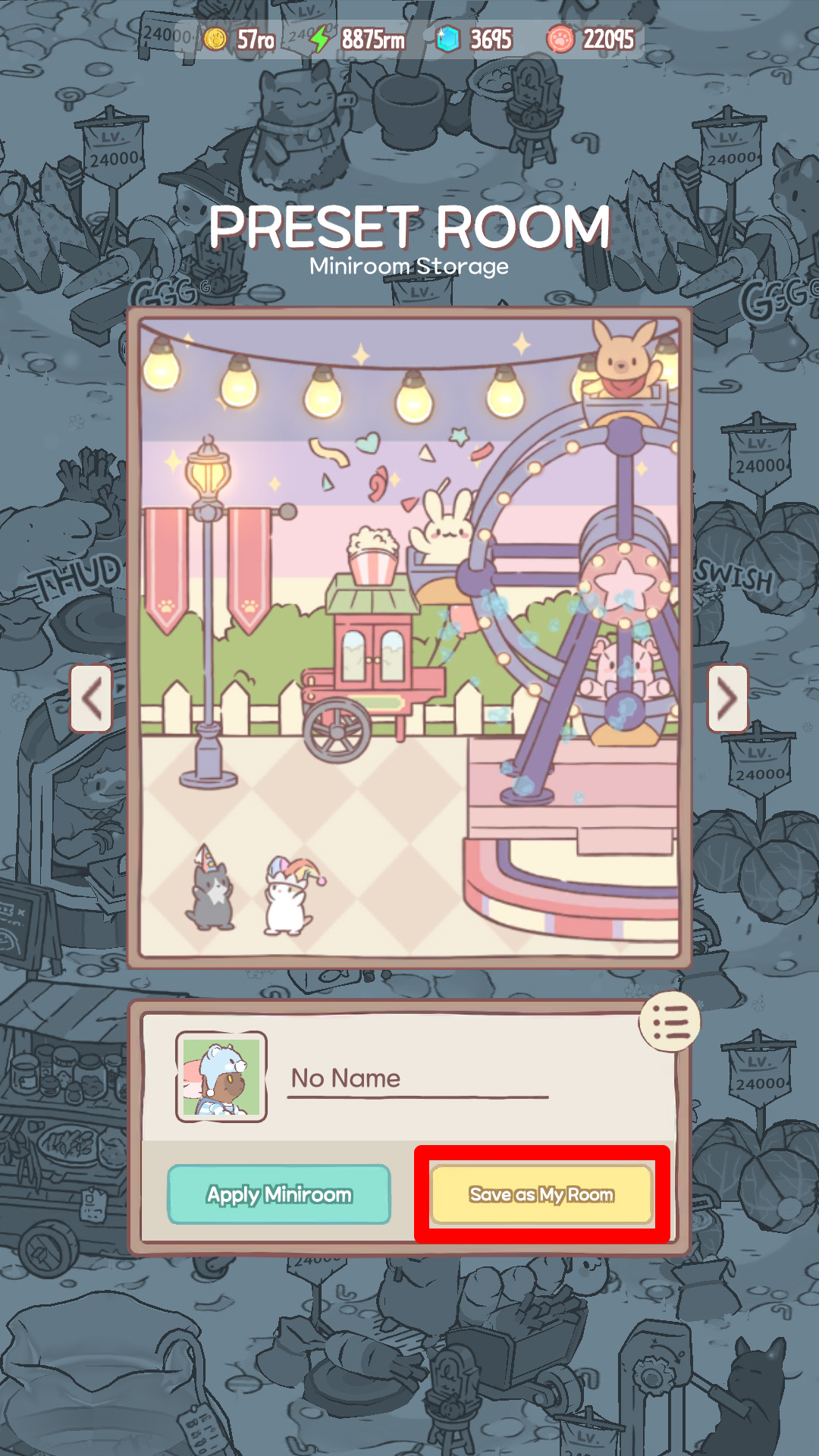
There’s a ‘Save as My Room’ button at the bottom of the screen.
Tap the button and choose an empty slot!
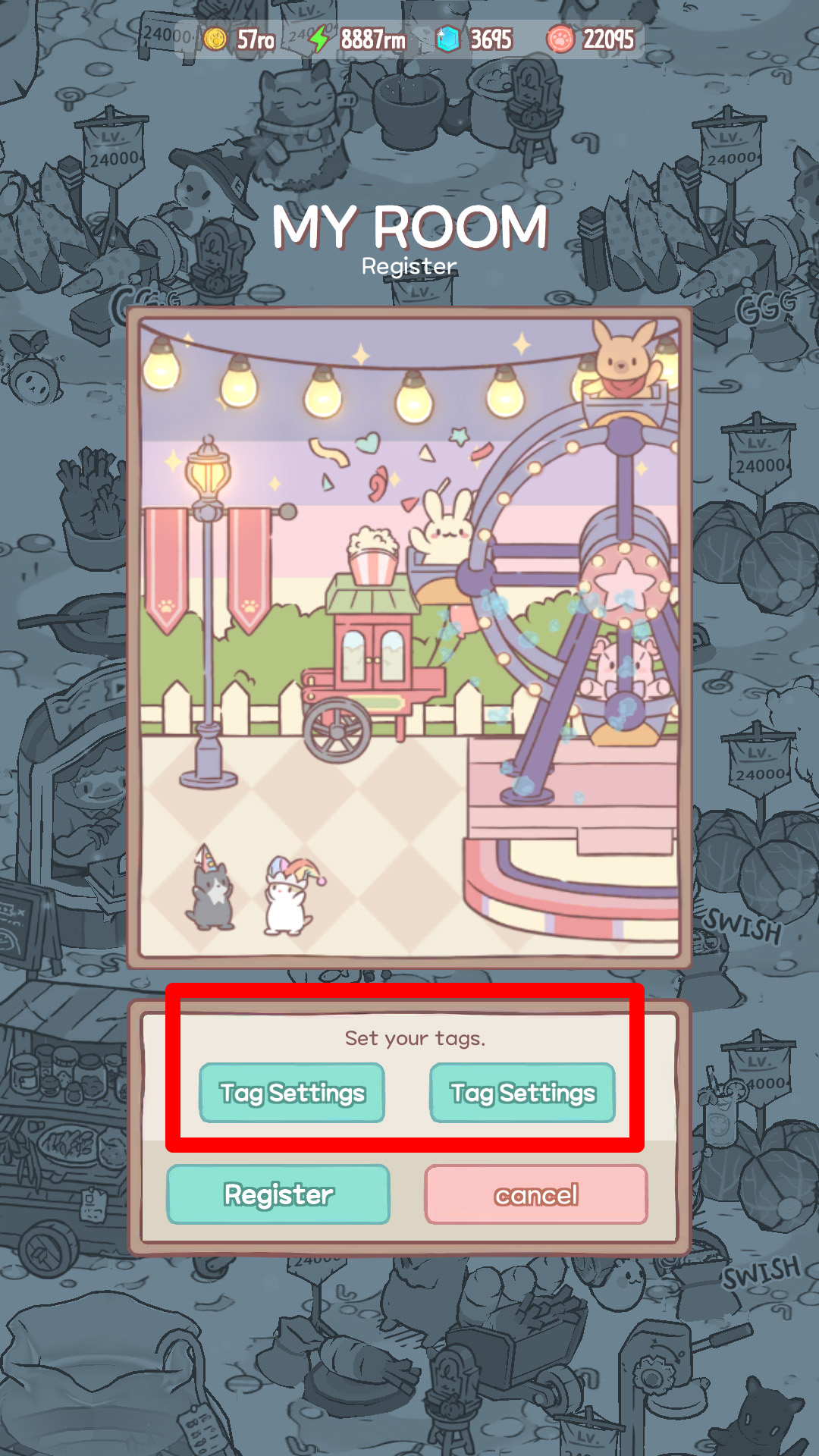
You can also set tags that best describe your minirooms!
Up to 2 tags can be selected, so be sure to choose them wisely
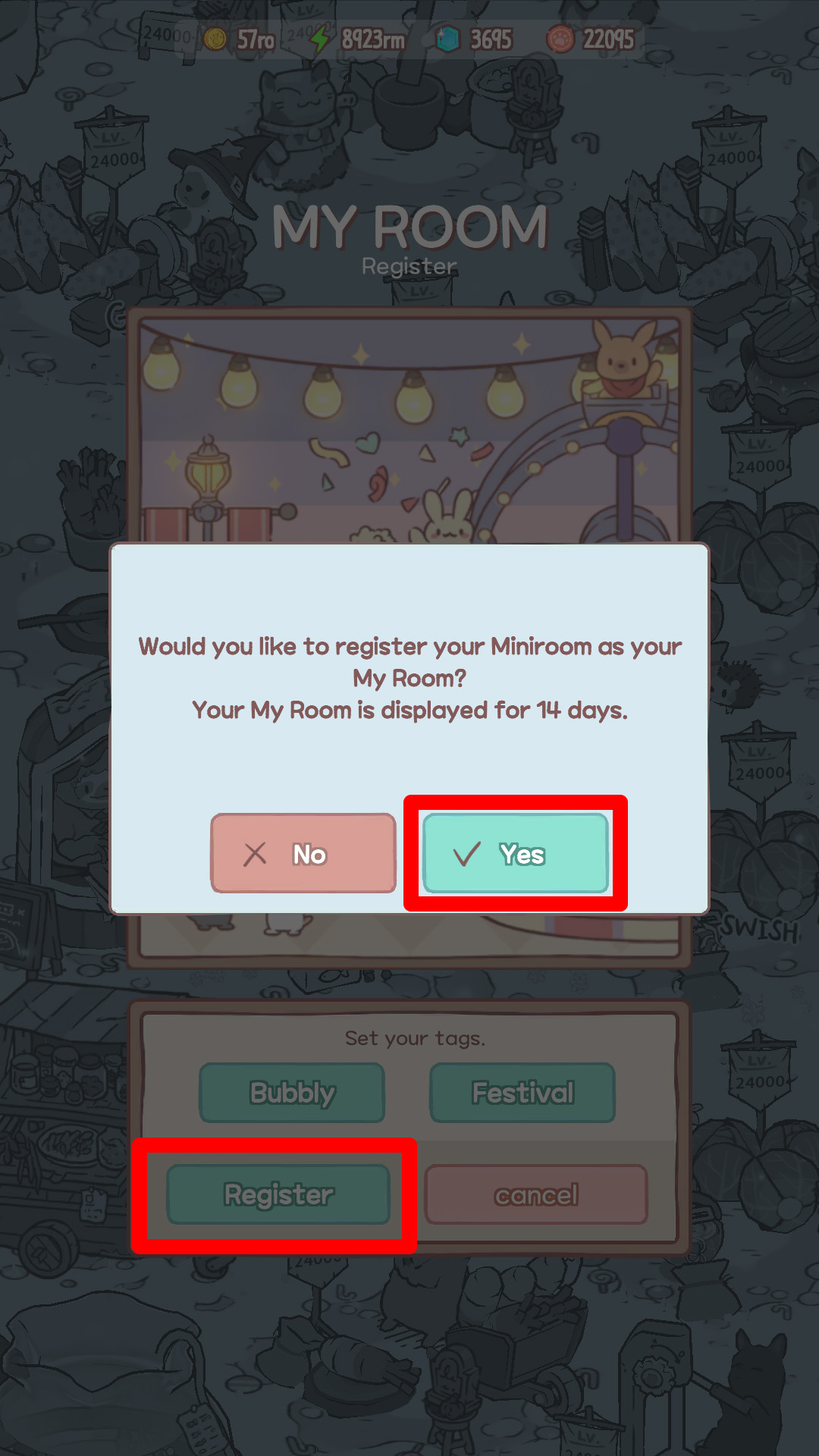
and if you just hit the ‘Register’ button…
Now all the Hoomanz can check your miniroom!
※ Newly uploaded minirooms will be displayed on Showroom everyday at 9 am!
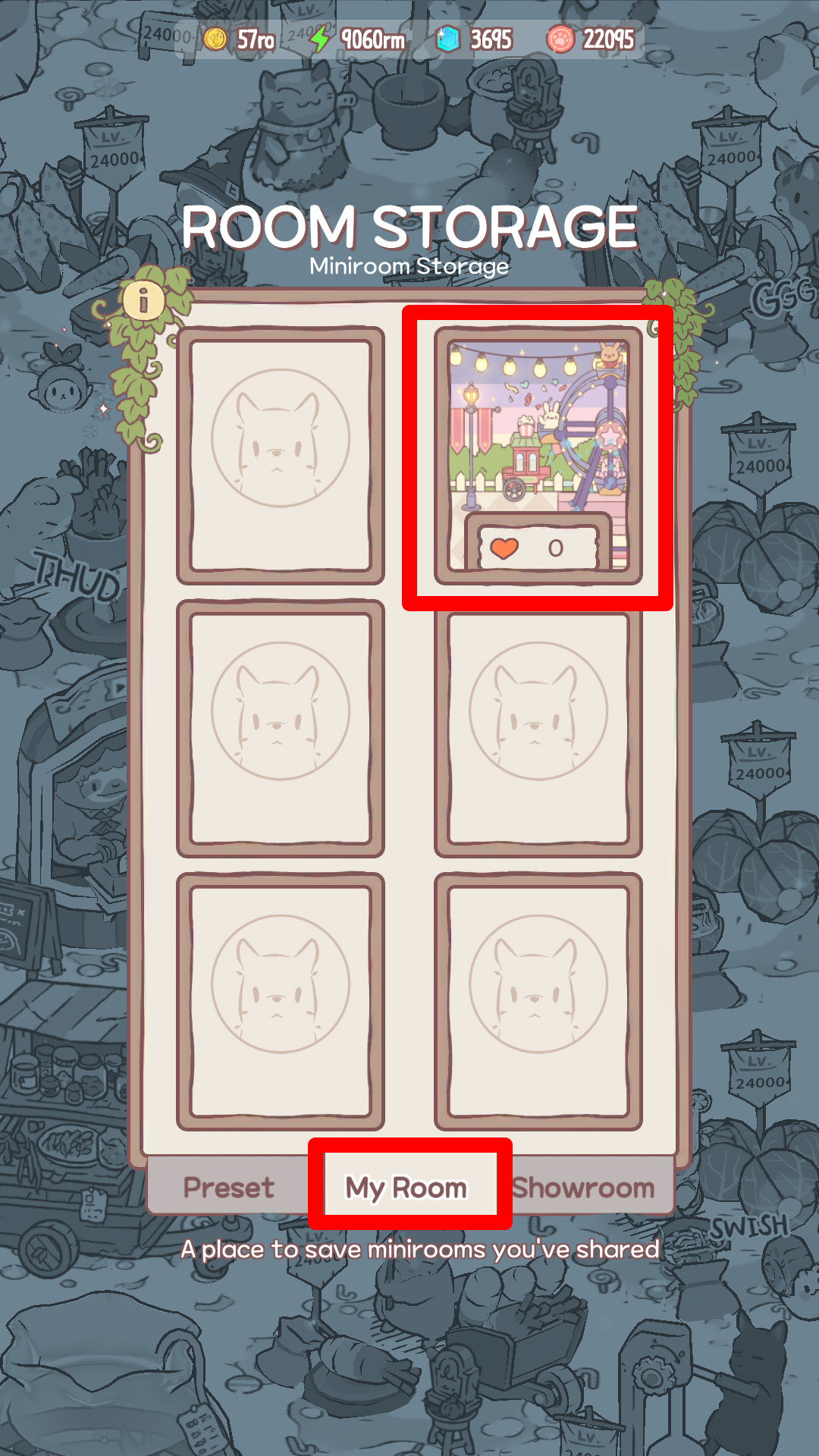
Oh right! You can check minirooms that you just uploaded to Showroom at the My Room tab of ‘Miniroom Storage’!
Tap the ‘Miniroom Storage’ button and then the ‘My Room’ tab at the bottom of the screen!
You can now check out all your minirooms uploaded to Showroom.
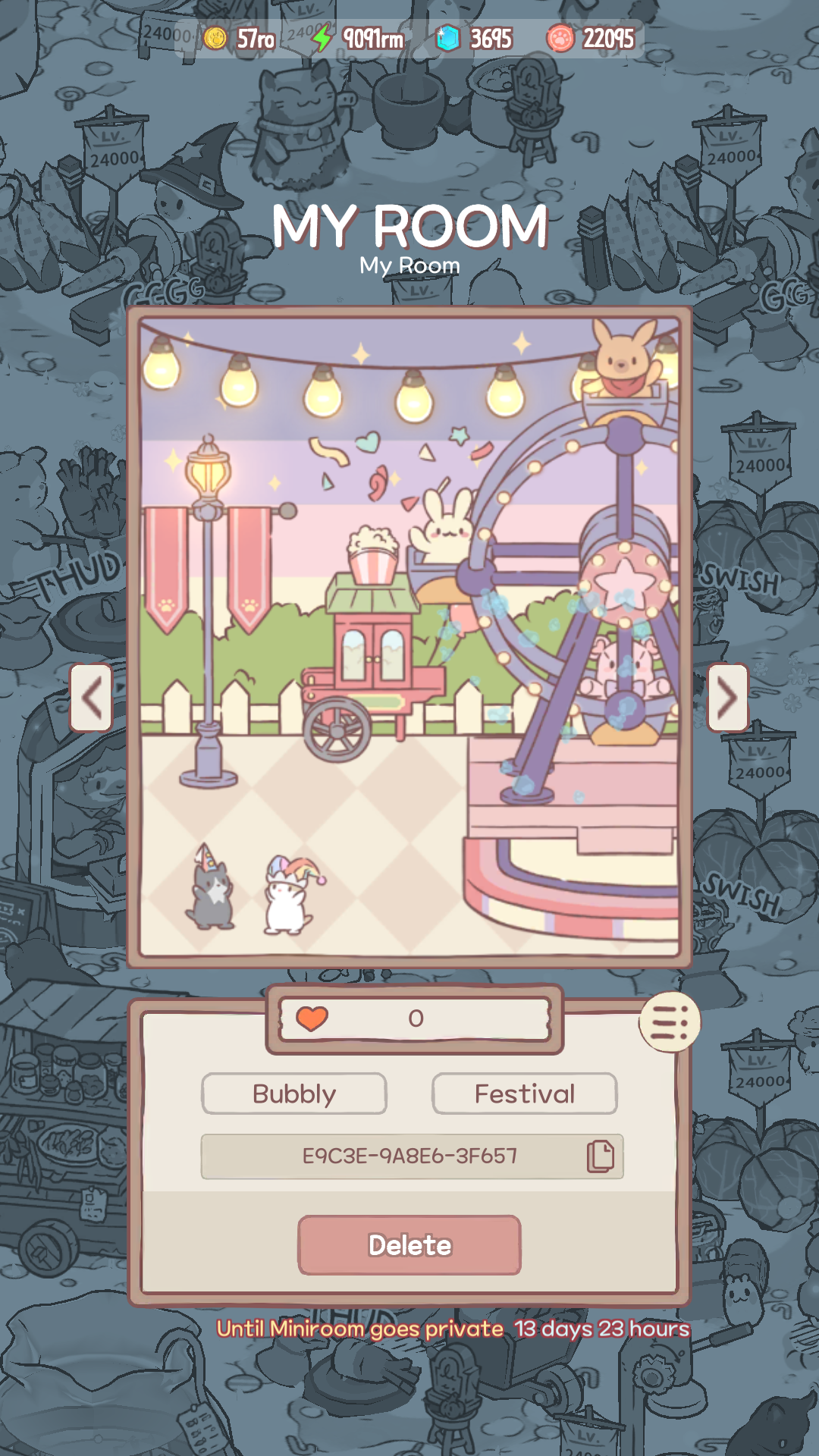
Once you select a miniroom, you can check the miniroom’s code
as well as how many Likes💕 your miniroom received!
The miniroom will disappear from My Room after 14 days,
so make sure to record it before the time runs out!
3) Delete Minirooms from My Room!
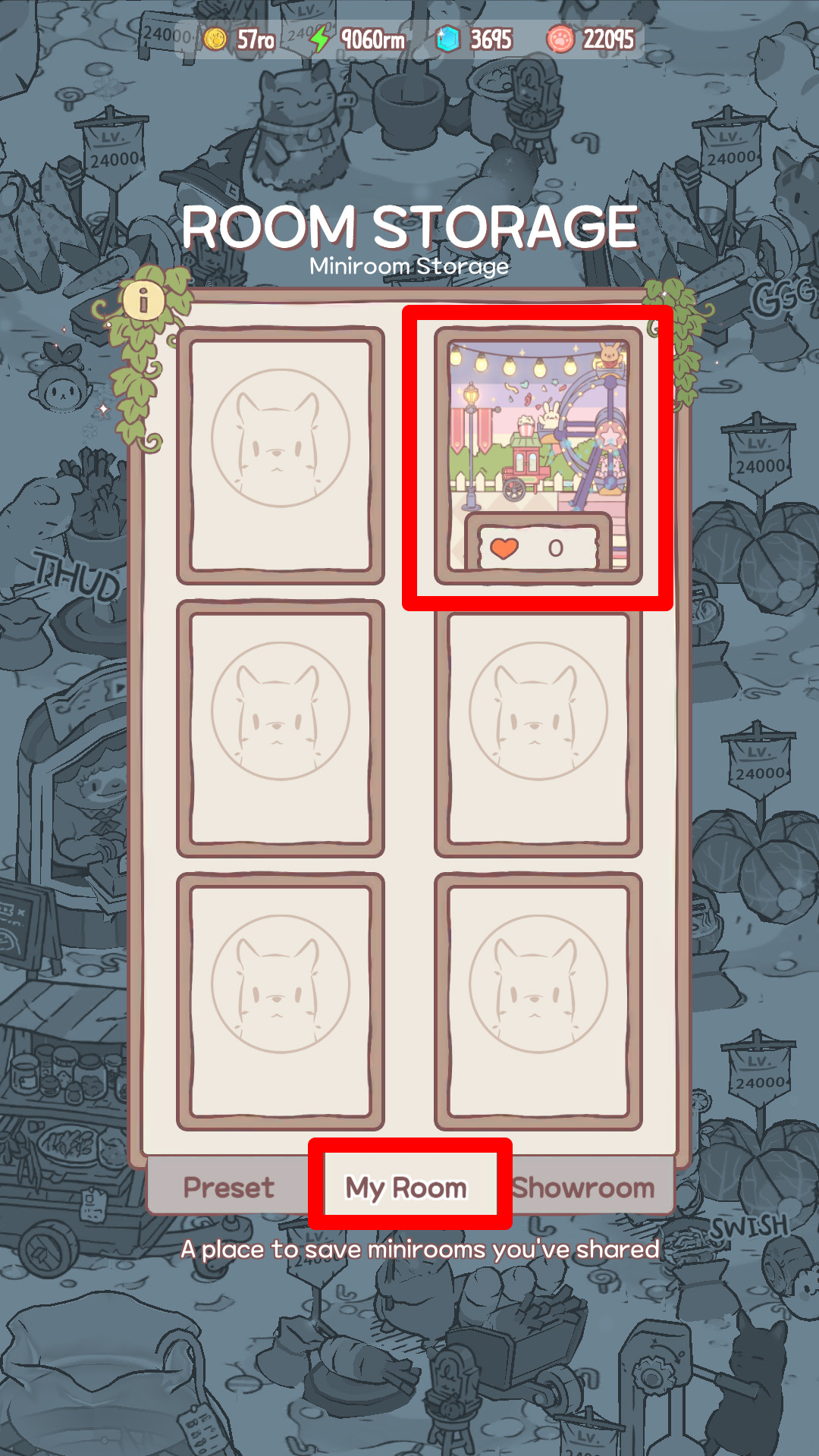
Sometimes, you might mistakenly save a miniroom
that you didn’t want to save in My Room.
In that case, select a miniroom that you want to delete from the ‘My Room’ tab.
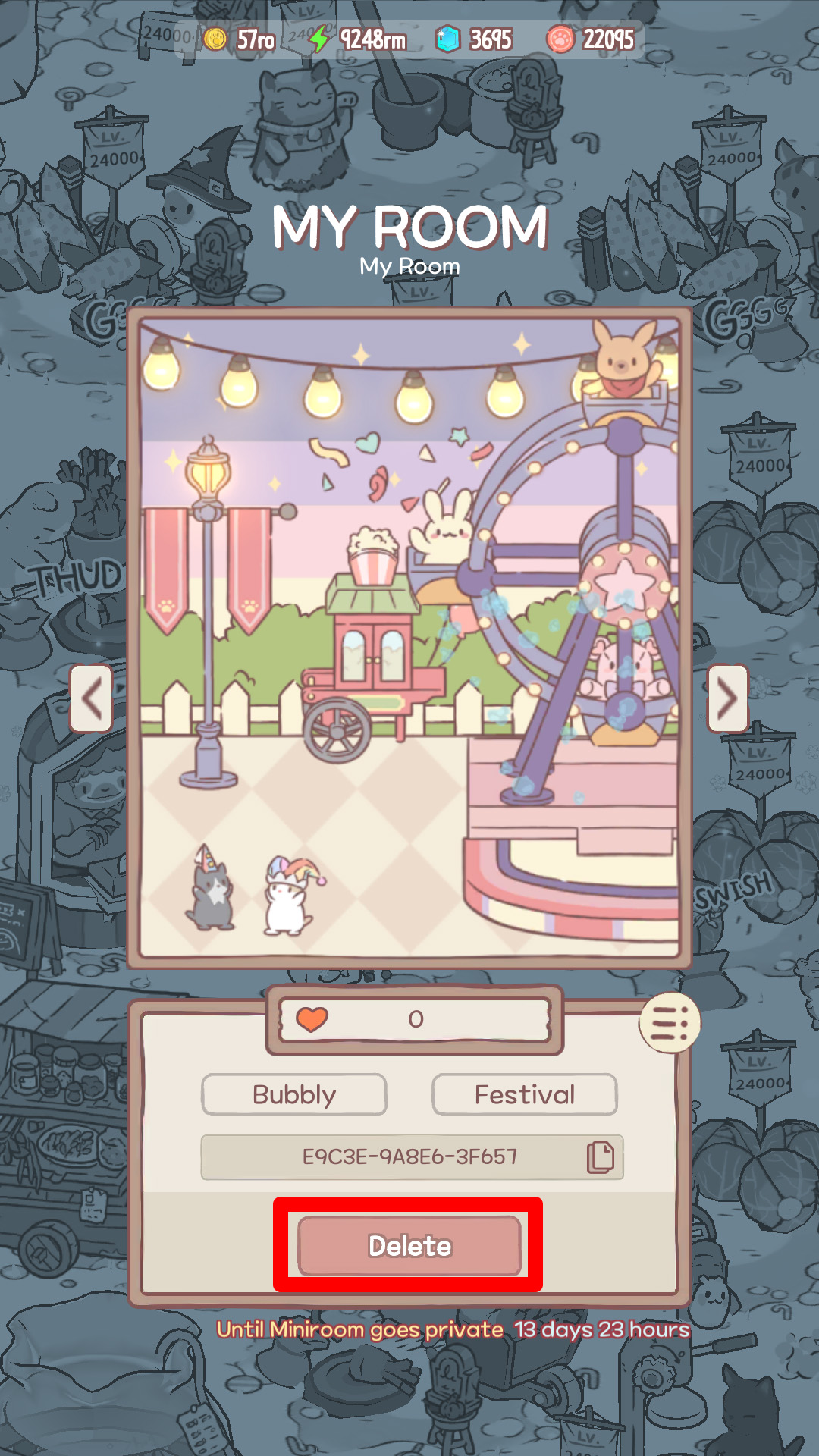
Then, tap the ‘Delete’ button at the bottom of the screen,
and the shared miniroom will be deleted after 1 hour!
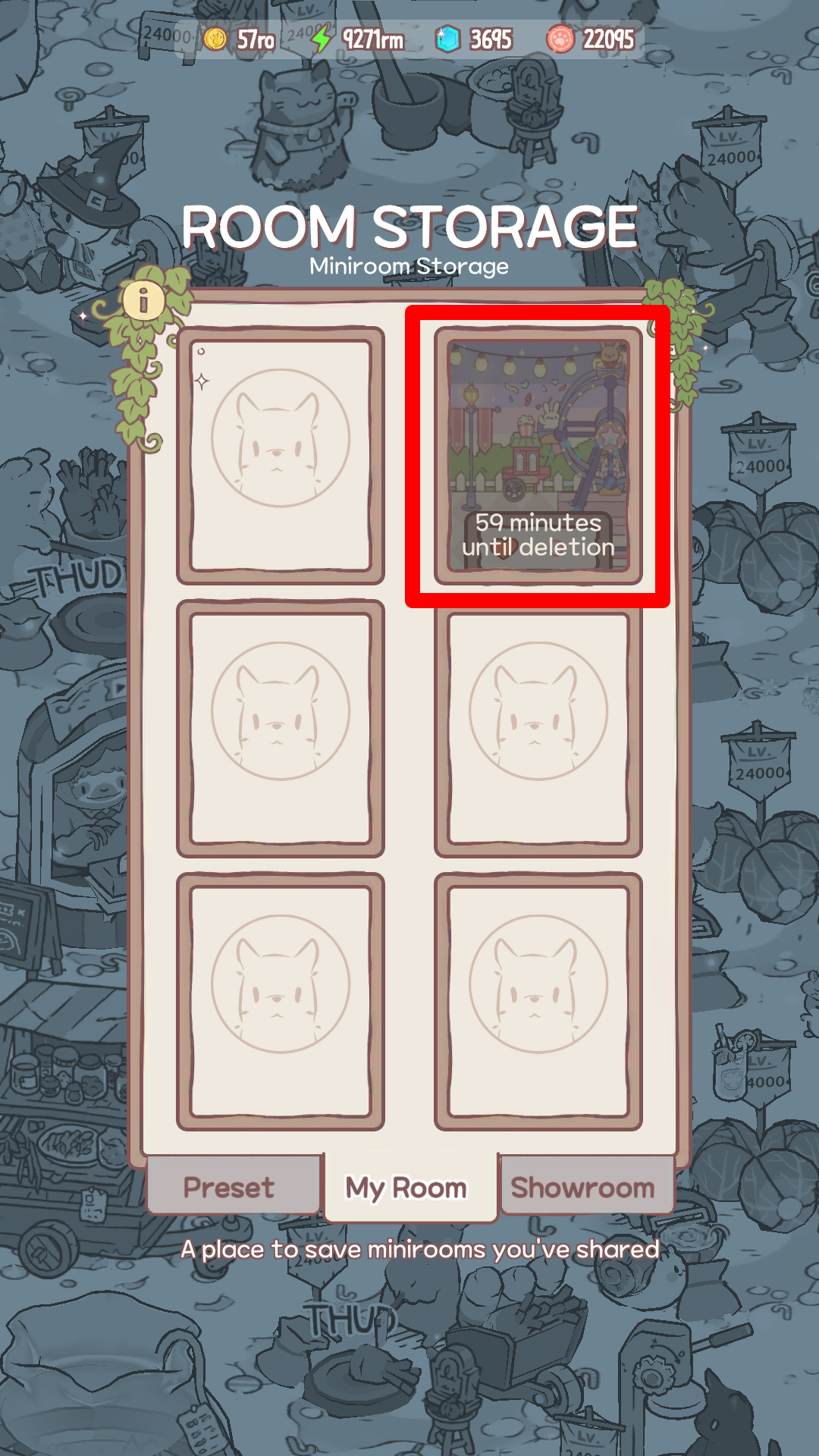
Once 1 hour passes, a miniroom will automatically be deleted.
If you cancel a delete request, the miniroom will be maintained until its original remaining time.
4) Save Other Hoomanz’ Minirooms!
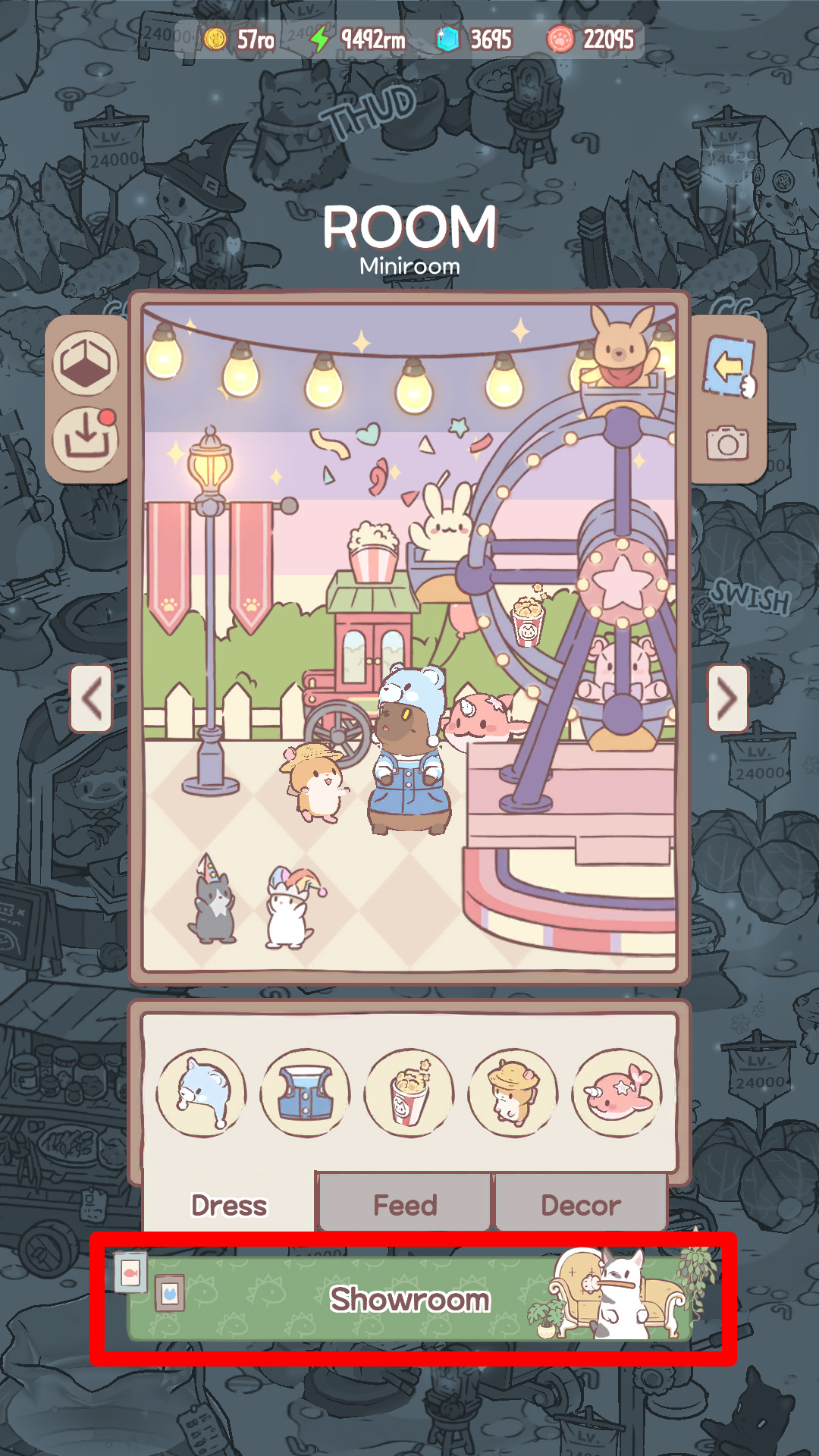
Now, it’s time to load minirooms that other Hoomanz decorated!
Go to ‘Showroom’ and pick a miniroom of your choice.
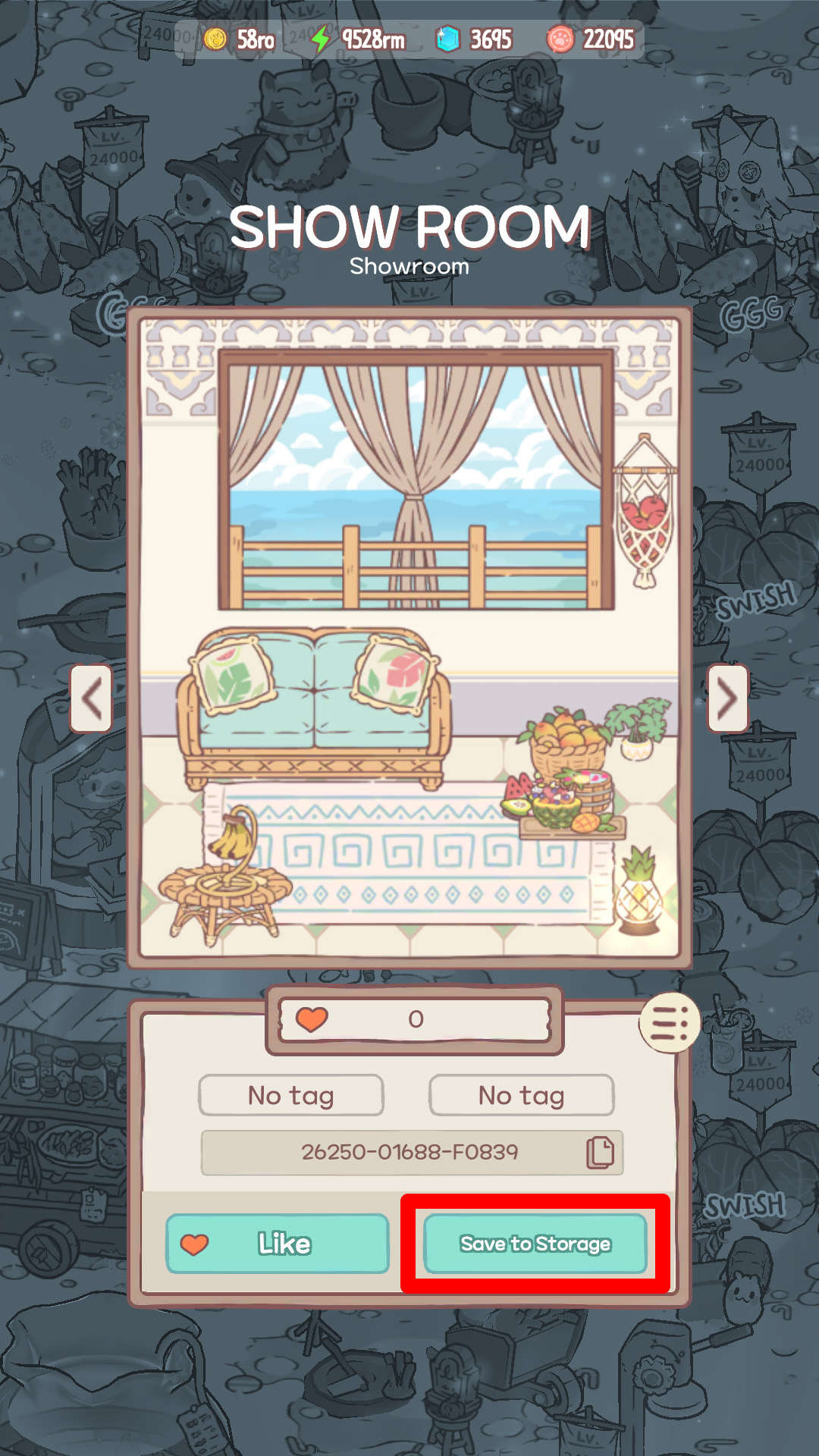
Tap the ‘Save to Storage’ button and a Save Preset pop-up will appear!
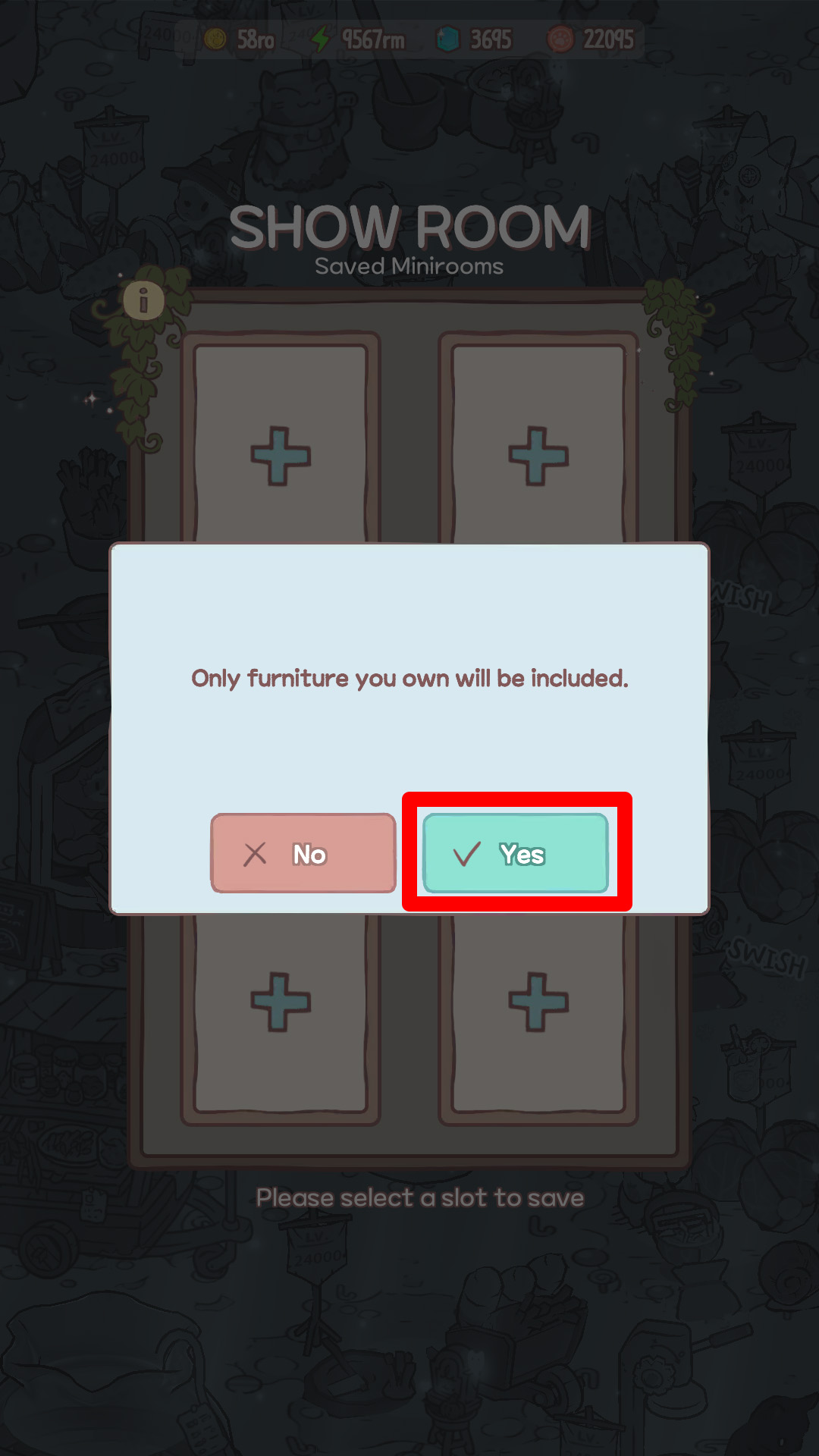
A pop-up will appear if you select an empty slot.
Tap ‘Yes’ and the miniroom will be saved.
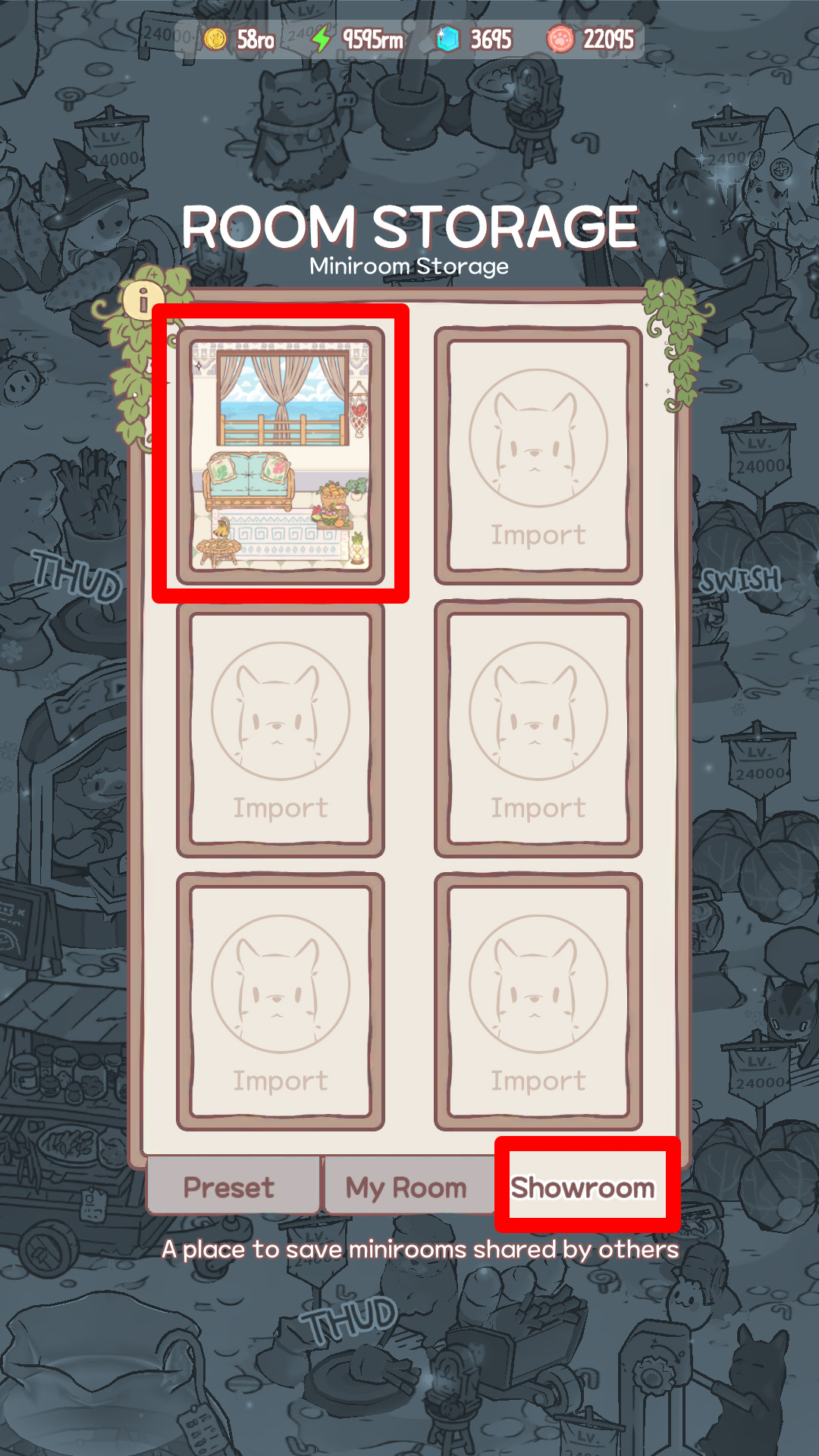
Now, go back to the miniroom screen and tap the ‘Room Storage’ button.
Select the ‘Showroom’ tab at the bottom of the screen to find the miniroom you just saved!
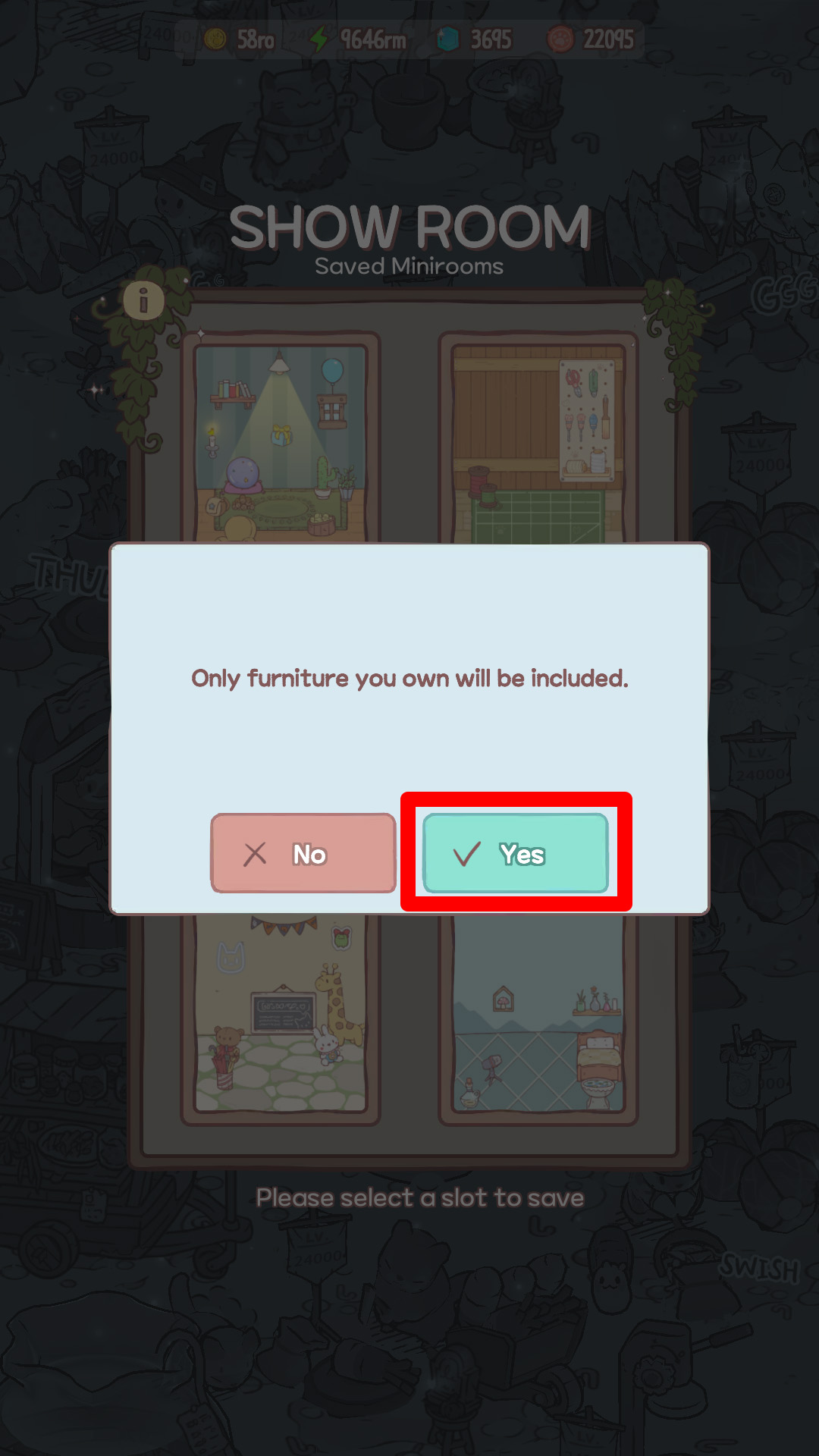
You can still save even if you don’t have any empty slots left in Room Storage!
Select a slot that already has a preset saved
and tap the ‘Yes’ button to save a new miniroom.
※ Once you import a new miniroom preset, the old preset data will be erased, so be careful!
5) Apply Other Hoomanz’ Minirooms to Mine!
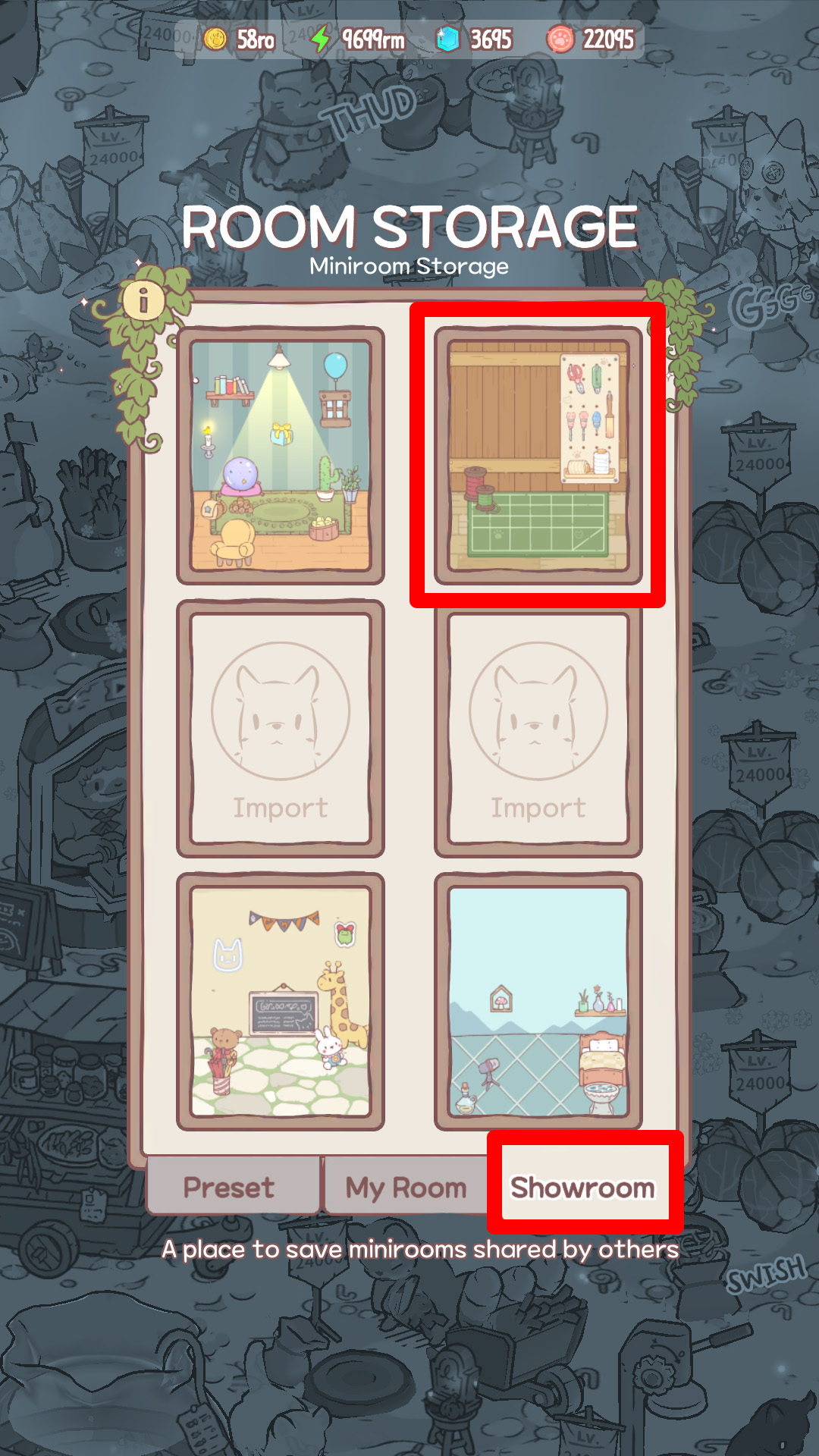
We’re almost there💦 You can do it, Hooman!
Select a miniroom preset that you just saved from the Showroom tab of ‘Room Storage’.
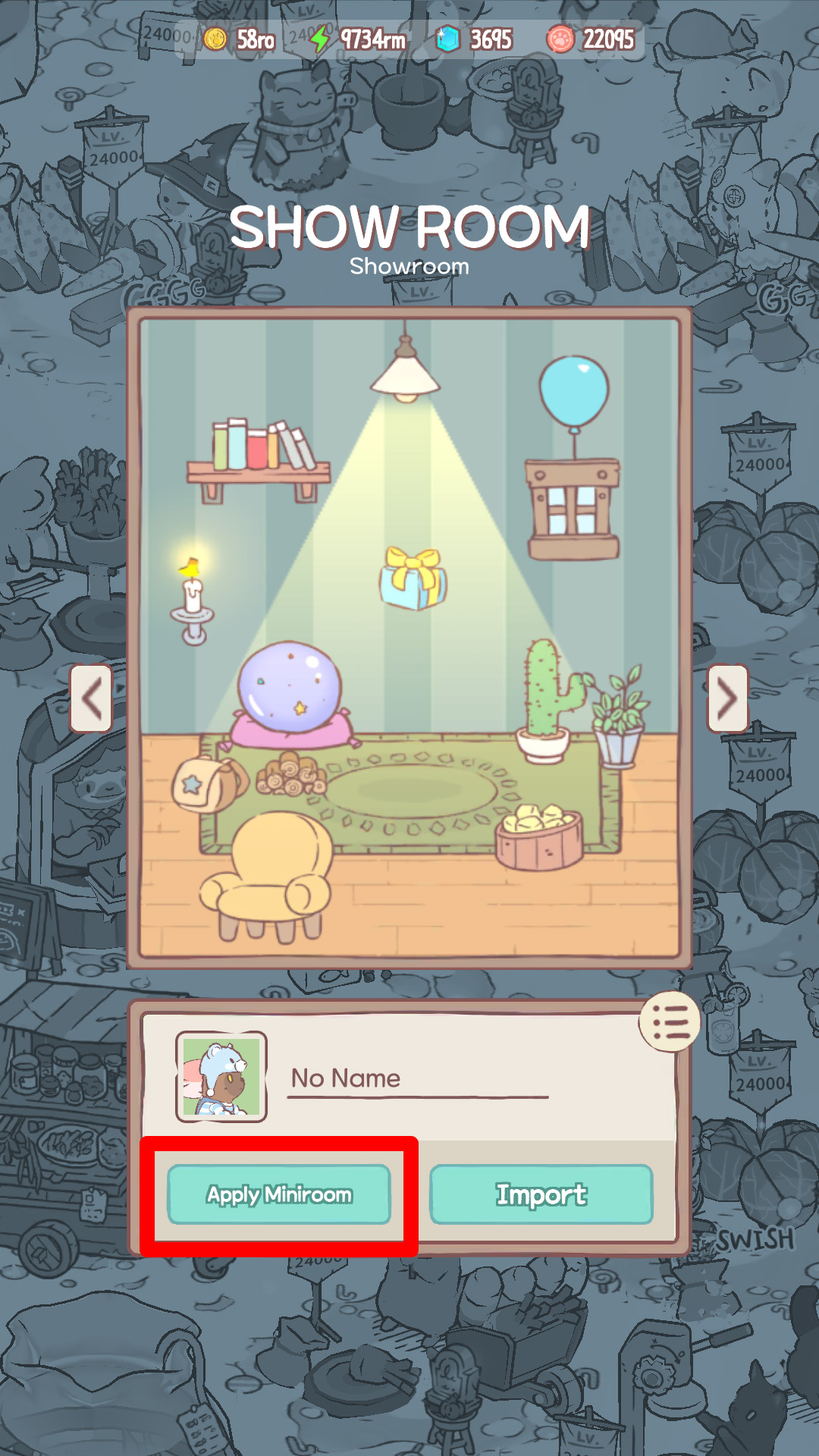
Hit the ‘Apply Miniroom’ button, and your miniroom will be decorated!🎉
※ Only the furniture that you have will be applied. Even if you have furniture, it will still not be applied if you already used that furniture to decorate your other minirooms!